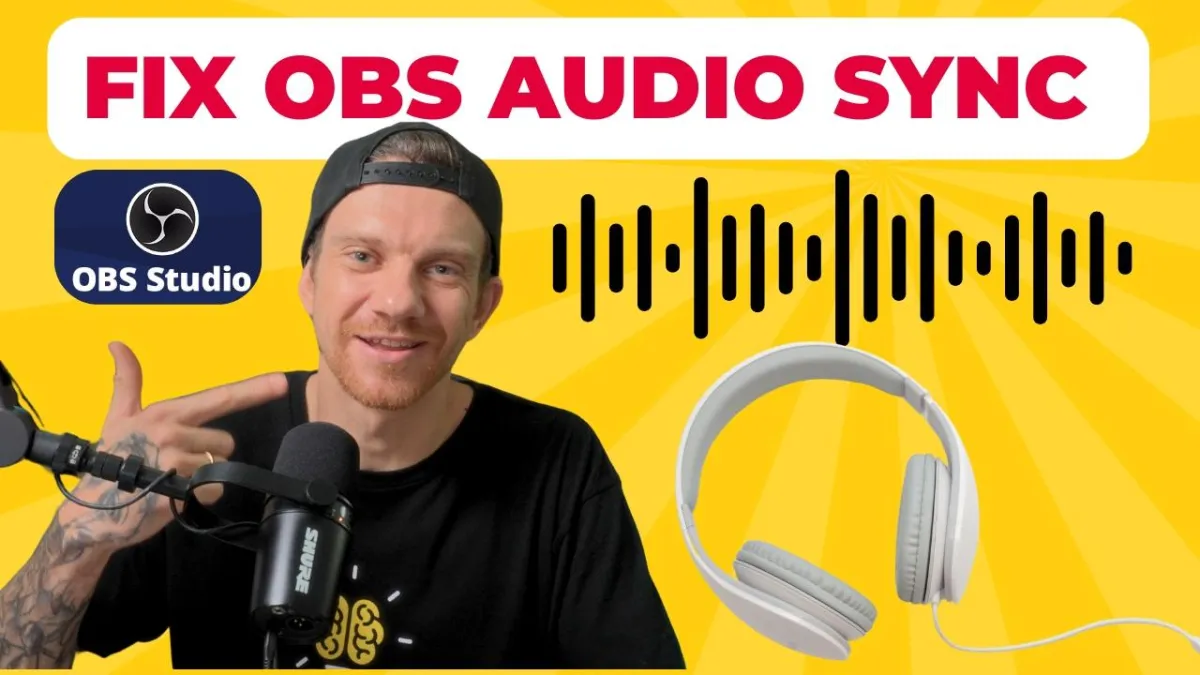
How to Fix Audio Sync Issues in OBS: A Complete Guide for Coaches
🔊Listing the blog post as a podcast.
As coaches transitioning to the digital space, delivering high-quality video content is crucial for connecting with your audience. One common frustration many face is audio sync issues in OBS (Open Broadcaster Software), where your lips don't match your words. Let's dive into a comprehensive solution that'll help you create professionally synced recordings.
OBS SETTINGS: https://maikkleinert.com/obs-setting-up-for-recording
Table of Contents:
Understanding the Basics of Audio Sync
Audio sync issues often occur due to various factors, including:
Cable length and quality
Hardware processing delays
Incorrect audio settings
System performance
The good news is that these issues are entirely fixable with the right approach.
Initial OBS Setup: Getting the Foundations Right
Before diving into sync corrections, let's ensure your basic audio settings are optimized:
Open OBS Settings and navigate to Preferences
Locate the Audio settings
Set the sample rate to 48kHz
Enable Stereo output
This configuration ensures your audio is recording at broadcast-quality standards and utilizing both audio channels properly - a common oversight that can affect overall audio quality.
The Sync Offset Method: Step-by-Step
Step 1: Testing Your Current Sync
Set your sync offset to zero (default setting)
Record a test clip with a clear visual and audio cue (like a clap)
Review the footage in your editing software
Step 2: Calculating the Delay
In your editing software, analyze the clip frame by frame
Locate the visual clap moment
Count the frames between the audio peak and visual clap
Use this formula: (Number of frames ÷ Frame rate) × 1000 = Milliseconds offset
For example:
6 frames delay at 30fps = 200 milliseconds offset
4 frames delay at 30fps = 133 milliseconds offset
Step 3: Implementing the Fix
Go to your microphone settings in OBS
Click the settings icon
Adjust the sync offset value based on your calculations
Test with a new recording
Fine-Tuning Your Sync
The perfect sync often requires some trial and error. Here's a systematic approach:
Start with the calculated value
Record a test clip
Analyze in your editing software
Make small adjustments (usually in increments of 10-20ms)
Repeat until perfectly synced
Most setups typically need between 140-170 milliseconds of offset for optimal sync.
Pro Tips for Better Audio Sync
Consistent Testing: Always test your sync before important recordings
Visual Markers: Use hand claps as they provide clear visual and audio reference points
Regular Checks: Re-test your sync when changing any audio equipment
Documentation: Keep note of your optimal settings for future reference
Troubleshooting Common Issues
If you're still experiencing sync issues after following these steps:
Check your cable connections
Verify your audio interface settings
Ensure your system isn't under heavy load
Consider the length and quality of your audio cables
The Impact on Your Coaching Content
As a coach, having perfectly synced audio and video:
Increases professional appearance
Maintains viewer engagement
Enhances the learning experience
Builds credibility with your audience
Final Thoughts
While fixing audio sync issues might seem technical, it's a crucial skill for creating professional-quality content. The time invested in getting this right will pay dividends in the quality of your coaching materials and the impression you make on your audience. Remember, the key is patience and systematic testing. Once you find your perfect sync offset, document it for future reference, and you'll be set for creating perfectly synced content consistently. By following this guide, you'll eliminate those distracting sync issues and can focus on what matters most - delivering valuable content to your audience.
THANKS FOR READING
Ready to Scale? Here's How We Can Work Together
If you're ready to stop figuring it out alone and want a funnel system that actually converts — let's talk.
I offer Done-For-You (DFY) funnel builds for course creators, coaches, and digital product businesses.
👉 Let's Build Your Revenue System
👉 Book A Discovery Call
👉 Send Me A WhatsApp
👉 Email: [email protected]
👇 TOOLS I USE DAILY 👇
** These are affiliate links you can use to both support my work and save money,
so it's win-win for both of us. Thank you! ❤️ **
📺 Learn More on YouTube
👉 Subscribe to my YouTube Channel
My Equipment/GEAR I use: ► https://kit.co/MaikKleinert
ALL-IN-ONE Platform for Course hosting, Marketing & DM Automation:
👉 Course Creator 360 (CC360) ► Course hosting, marketing & automation.
👉 Course Creator Pro ► How to create an Online Course.
YouTube tools:
👉 🤖 VidIQ – AI‑Powered YouTube Growth 🚀
👉 🔴 Tubebuddy - YouTube Research tool
Video Editing Tools for Creators:
👉 🎨 DeHancer - 10% OFF code "MAIK" Film emulation,Filmlook,Halation,Bloom
👉 🎨 CineDream - Cinematic Color Grading Plugin, Film Looks, Click & Grade, Skin Tone Guides, Premiere / Resolve / FCP
👉 🖥 MotionVFX - Motion graphic plugin for Davinci Resolve, Premiere…
👉 🎶 ARTLIST - Music & SFX licensing
Productivity & Learning tools:
👉 Speechify ► helps ADHD individuals read audiobooks, websites, blogs, and emails.




Mail
Facebook
LinkedIn
X
Pinterest
Reddit
Snapchat